Why Traditional Background Removal is Dead
For years, removing a background meant spending 15 minutes in complex software meticulously tracing outlines with the Pen or Magnetic Lasso tool. Fine flyaway hairs, transparent glass reflections, and fluffy pet fur made clean cutouts a nightmare.
Today, modern neural networks (such as BiRefNet and U-Net architectures) have completely transformed this workflow. By analyzing high-frequency contrast, semantic depth, and sub-pixel edge boundaries, AI models isolate people, products, jewelry, animals, and cars with superhuman accuracy in just a few seconds.
Best of all, OmniSave AI Background Remover gives you full studio power completely free—with unlimited downloads, zero sign-up requirements, and no blurry 500px resolution caps.
Supports high-res PNG, JPG, JPEG & WebP • Up to 20MB


Step 1: Uploading Your Image
Getting started is as simple as visiting omnisave.me/remove-background:
- Drag & Drop: Drag any photo from your desktop or phone gallery directly into the purple upload dropzone.
- File Browser: Click anywhere on the box to select a PNG, JPG, JPEG, or WebP file (up to 20MB).
- Direct Downloader Integration: If you are extracting image carousels from Instagram, Pinterest, or TikTok on OmniSave, look for the purple scissors button next to any downloaded image card. Clicking it automatically opens the picture directly into the Background Remover!
Step 2: Inspecting with the Interactive Split-Slider
Once the AI finishes segmentation (typically 3 to 5 seconds), OmniSave opens the Interactive Split-View Comparison Canvas.
By dragging the central divider handle left and right, you can directly compare the original unedited picture on the left (BEFORE) with the transparent AI cutout on the right (AFTER). This lets you inspect hair details, transparent shadow cutouts, and sharp boundaries before downloading.
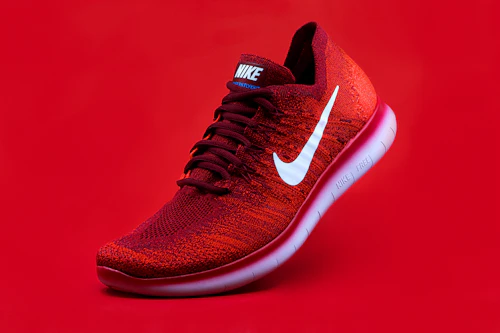
Step 3: Choosing Your Replacement Background
Depending on how you plan to use your image, OmniSave lets you switch the background with a single click:
Essential for graphic designers, stickers, logos, YouTube thumbnails, and overlaying subjects onto video clips in the OmniSave Video Studio.
Amazon, eBay, Etsy, and Shopify require products on a pure white backdrop. Click "E-com White" for instant marketplace-compliant listings.
Gives luxury watches, sneakers, and portraits a moody, high-contrast aesthetic ideal for dark mode portfolios and modern websites.
Open the integrated color picker to enter your brand's exact HEX code or select pastel backdrops for social media avatars.
Step 4: Precision Refinement with the "Erase & Restore" Brush
While AI delivers 99% accuracy on most photos, complex scenes may occasionally contain unwanted foreground objects (like someone's hand holding a product) or tricky wisps of hair that you wish to preserve.
OmniSave solves this with the built-in Erase & Restore Brush Tool:
Paint directly on pixels to erase stray elements or recover original details.
- Click the purple "Erase & Restore (BRUSH)" button below the preview canvas.
- Select Erase to rub out unwanted photobombers, tags, or shadows.
- Select Restore to bring back any parts of the subject that the AI might have accidentally clipped.
- Adjust the Brush Size slider for pinpoint accuracy around jewelry, eyelashes, or edges.
- Click "Apply Changes" to update your cutout immediately.
Step 5: Downloading Your HD Image
When you're happy with the result, hit the purple "Download Image (HD)" button.
- Native Resolution: Your image is saved in original pixel dimensions (e.g. 4000x3000), retaining pristine clarity for large print or 4K screens.
- Lossless Format: Transparent cutouts are exported as lossless 32-bit PNG with an alpha channel. Colored backgrounds can be downloaded in crisp PNG format.
- No Watermarks: Zero branding, zero logos, and zero fees.
Frequently Asked Questions (FAQ)
Is OmniSave Background Remover completely free?
Yes! You can process unlimited photos in full original resolution without watermarks, subscriptions, or credit card requirements.
Are my uploaded photos safe and private?
100% private. Processing happens directly in high-speed server RAM and is immediately purged upon delivery. Your photos are never stored in databases, logged, or shared with third parties.
What photo formats are supported?
OmniSave supports PNG, JPG, JPEG, and WebP files up to 20MB per image.
Ready to Remove Backgrounds in HD for Free?
No sign-up. No credit card. Just upload your photo and get a crisp transparent PNG in 5 seconds.